
Mind Mapping on a Phone Screen: Why XMind's Mobile Mode Is Better Than You Think
Discover how touch gestures and focused zoom interfaces in XMind’s mobile app turn the perceived limitation of a small screen into a tactical advantage for brainstorming.

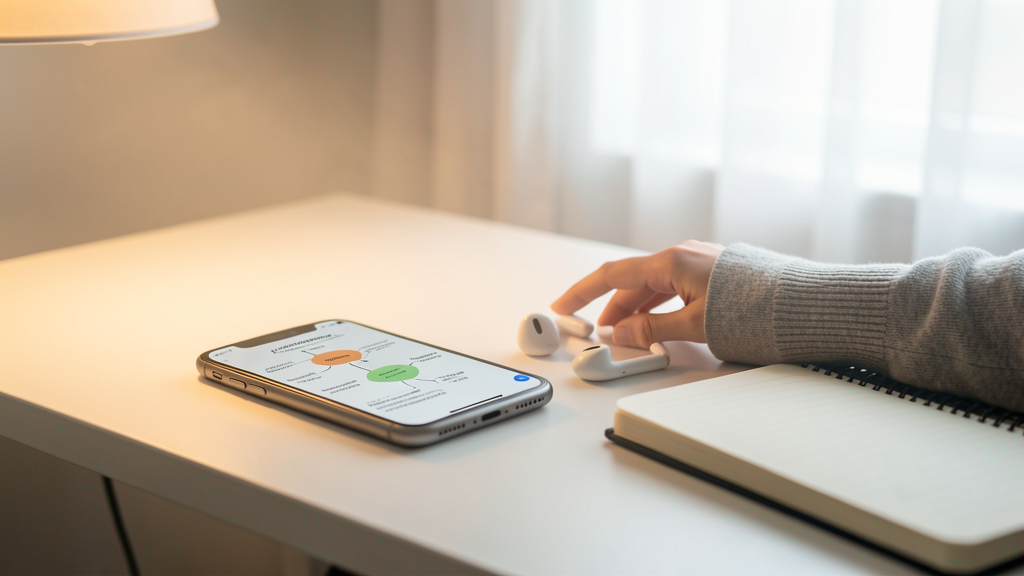
There is a persistent snobbery in the productivity community regarding where "real work" happens. For years, we have operated under the assumption that complex, structural thinking requires the acreage of a 27-inch monitor or, at the very least, the generous canvas of an iPad. Mind mapping, a discipline inherently dependent on seeing the "whole" system, has been the poster child for this bias. The belief is that a smartphone is strictly for consumption—checking off tasks, reading emails, or doom-scrolling—not for building intricate knowledge architectures.
I carried this bias myself until a flight delay last November forced my hand. Stuck in a terminal lounge with my laptop dead in my bag, I had to restructure a sprawling project outline. I opened XMind on my phone, expecting frustration. Instead, I found a workflow that, in many tactical ways, felt superior to the desktop experience. The limitation of the screen real estate was not a deficit; it was a filter. The app forced a level of focus I struggle to maintain on a desktop.
The Myth of "Canvas Claustrophobia"
The most common objection to mobile mind mapping is that a phone screen creates claustrophobia. You cannot see the forest for the trees, or so the argument goes. On a desktop, you can pan out to see a map with fifty branches radiating from the center. On a phone, you are allegedly trapped in a tiny window, constantly zooming in and out like a lost tourist.
The reality is that seeing the entire map at once is often the enemy of deep work. When you view a massive map on a monitor, the visual noise triggers a cognitive tax. Your eyes dart between unrelated topics, breaking your flow state. XMind’s mobile interface utilizes a "focus mode" logic by necessity. You are forced to deal with one branch at a time.
This limitation aligns perfectly with how our brains actually process complex problems. We think sequentially, not globally. By isolating a single topic on the screen, the phone encourages you to exhaust the current line of thinking before jumping to another. In the 2026 version of XMind, the touch interaction for this is sublime: a double-tap on a node centers it and hides the clutter, while a subtle "breadcrumbs" bar at the top keeps your orientation intact.
Troubleshooting Navigation Issues: New users often report getting "lost" inside deep hierarchies. If you lose the central topic:
- Look for the floating "Navigate" button (usually a compass icon or the map thumbnail in the bottom corner).
- Tap it once to snap the view instantly back to the root node.
- If the interface feels laggy during rapid zooming, check your "High Quality Image" settings in the app preferences; turning this off improves rendering performance on older phones significantly.
Typing Isn't the Bottleneck—Structure Is
Another myth suggests that mobile mind mapping is tedious because typing on glass is slower than hammering away on a mechanical keyboard. This assumes that the speed of mind mapping is dictated by the words per minute you can type. It is not. The bottleneck in brainstorming is the speed at which you can capture the relationship between ideas, not the spelling of the ideas themselves.
XMind’s mobile interface understands this. While typing a sub-topic is straightforward, the real magic lies in the gestures. On a desktop, you often reach for the mouse to click "Insert Child Node" or drag a branch to a new location. That context switch kills momentum. On mobile, your finger is already on the canvas.
Long-pressing a node to spawn a child, or using two fingers to rotate the canvas for a better angle, creates a tactile connection to your data. I found myself building structures faster on the phone because the interaction model was direct manipulation rather than indirect pointing. This tactile approach is similar to the logic behind implementing atomic notes in Obsidian Mobile for academic researchers, where the friction of capture must be near-zero to capture a fleeting thought.
Troubleshooting Gesture Conflicts: Sometimes, you intend to zoom in to read text, but the app registers it as a branch movement.
- The Fix: Ensure your fingers are not resting directly on a node when you pinch to zoom. Place fingers on the empty background canvas to trigger zoom.
- If accidental edits happen frequently, enable the "Confirm Before Dragging" option in the Gestures menu to prevent structural changes during casual reading.
Mobile Drafts Are Disposable (And Why That's Good)
There is a stigma that work started on a phone is inherently "rough" or "draft quality." We treat mobile notes as staging areas for real work that happens later on a computer. This perspective undervalues the utility of the mobile environment as a distinct medium for different types of thinking.
When I am at my desk, I am in "presentation mode." I worry about hierarchy, color schemes, and whether the map is client-ready. When I am on my phone, I am in "exploration mode." I am willing to write half-formed ideas, messy connections, and chaotic branches because the medium feels temporary. This psychological safety net encourages riskier, more creative thinking.
It is similar to the stream-of-consciousness flow found in creating a 'Morning Pages' workflow using Day One's voice-to-text feature. The goal is volume and intuition, not polish. XMind’s mobile mode excels here. You can use voice dictation to dump ideas rapidly onto nodes, then use the touch interface to shuffle them around later. If you tried to do this on a desktop, you might be tempted to format the text immediately, stalling the creative impulse.
Troubleshooting Sync Conflicts: If you switch between devices and find branches missing or duplicated:
- Force close the XMind app on your phone before opening the file on your desktop.
- Check if you are using "Local" storage or "XMind Cloud." Local files do not sync.
- Ensure you have a stable internet connection; XMind syncs node-by-node, and a dropped connection can orphan a branch if the save wasn't finalized.
Precision Requires a Stylus, Right?
The stylus lobby is loud. They argue that manipulating thin lines and small text boxes on a six-inch screen is impossible without a fine-point pen. While a stylus is nice, it is not mandatory, provided the software is engineered correctly for touch.
XMind’s developers have accounted for the "fat finger" problem. The touch targets for nodes are significantly larger than the visual representation of the node itself. You can tap slightly outside a bubble and still select it. Furthermore, the auto-snap features for aligning branches are aggressive in a good way. When you drag a node near another, it snaps into place magnetically, creating a structure that looks precise even if your hand was shaking.
This is where the zoom-interface pays dividends again. You don't need pixel-perfect precision because you can zoom in until a single node fills the screen, edit it, and zoom out. The interface creates a "focus scope" that renders the need for a stylus moot for 90% of use cases.
Troubleshooting Selection Errors: If you constantly select the wrong parent node when trying to create a child:
- Zoom in closer before you tap. The density of nodes affects hit-testing accuracy.
- Use the "Pop-out Editor" feature. Tapping the pencil icon on a selected node opens a full-screen text editor for that specific point, eliminating the risk of accidental canvas taps while typing.
The Constraint Creates the Structure
We talk endlessly about tools, but we rarely talk about how constraints shape our output. A blank whiteboard is paralyzing because it offers infinite freedom. A phone screen is a liberating constraint. It forces you to break your map into digestible modules. It forces you to summarize ideas to fit on the screen.
XMind’s mobile mode is not a crippled version of the desktop app; it is a different tool entirely. It prioritizes depth over breadth and focus over overview. If you are still waiting for a laptop to organize your thoughts, you are missing out on the most immediate capture device you own. The friction of the small screen is actually the traction your ideas needed to take hold.
Read next
Touch-First Atomic Notes for Academic Research
Mobile academic workflows often fail because linking concepts is tedious on touch screens; here is how to fix that friction using Obsidian's specific mobile tools.

Dictate Your Way to Clarity: A 2026 Morning Pages Workflow in Day One
Overcome morning typing friction by leveraging Day One's voice-to-text capabilities to capture stream-of-consciousness thoughts at the speed of speech.