Build a Lock Screen That Protects Your Attention
A field-tested guide to use lock screen widgets and notifications carefully so the phone gives context without becoming a billboard with concrete phone checks, examples, and a short review path.

By Nora Ellis · Published June 16, 2026 · Updated June 22, 2026 · 4 min read
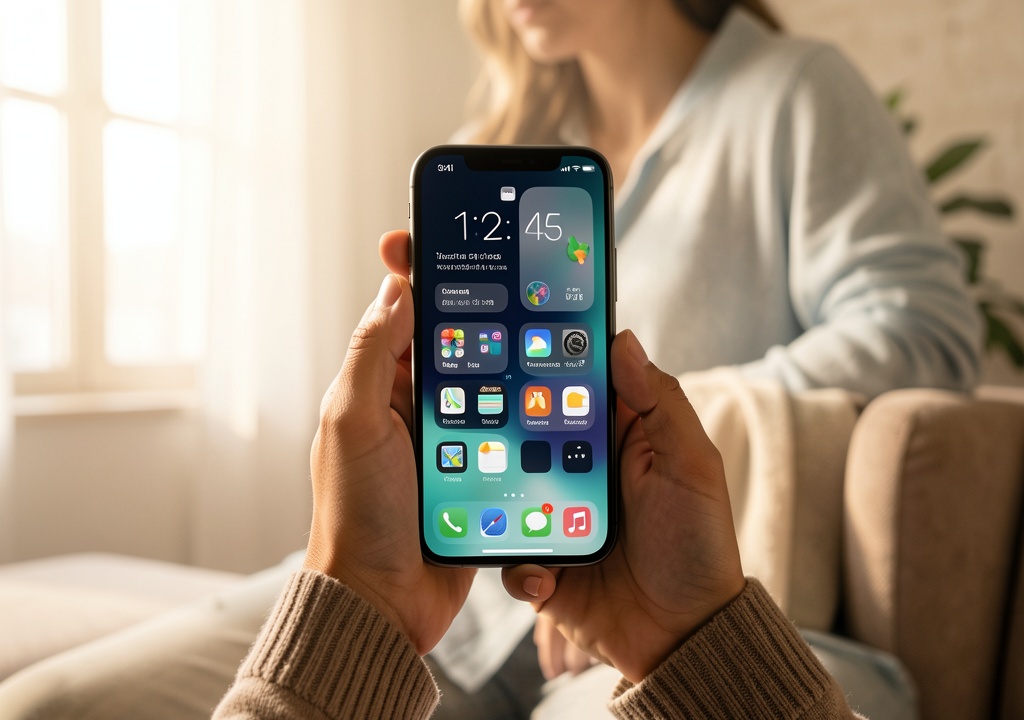
The lock screen is the phone’s front door. If it shows too much, you start the day inside other people’s priorities before you even unlock.
This guide uses a lock screen with three permissions: orient me, warn me, or wait because the useful version of use lock screen widgets and notifications carefully so the phone gives context without becoming a billboard has to work on a normal phone, not just in a tidy product screenshot.
Digital habit work gets better when it stops sounding like self-improvement theater. The phone should support the day you actually have, including tired evenings and messy weeks.
Name the job before choosing the tool
The first move is to define the job narrowly. For this topic, the job is to use lock screen widgets and notifications carefully so the phone gives context without becoming a billboard. That wording matters because it keeps the article away from a generic list of app tips.
A good first pass has one visible result: you can check time and one useful context without seeing a feed, promo, or argument. If that result is hard to observe, shrink the setup until the signal becomes obvious.
Nora tests habit advice against the ordinary moments where phones win: waiting rooms, tired evenings, commutes, and the first unlock of the day.
The trade-off is worth naming early: filling the lock screen with productivity widgets until it becomes another home screen. That mistake feels harmless at the start because the phone makes every change look reversible, but attention and account data are harder to clean up later.
Set the guardrails early
| Part of the workflow | What to check on the phone | Editorial rule |
|---|---|---|
| Orient | time, weather, next event | Keep it glanceable and boring. |
| Warn | family call, travel change, security alert | Let interruptions earn their place. |
| Wait | messages, newsletters, social, shopping | Move to summary or hidden preview. |
Use the table as a small field test, not as a permanent doctrine. Open the relevant settings, app, folder, or dashboard and make one change at a time.
For build a lock screen that protects your attention, the boring version is usually the right one. Boring means you can repeat it when the battery is low, when your thumb is tired, and when the day is already moving.
If a step requires a long explanation, label it as an experiment. Experiments are allowed to fail; permanent systems should earn their place after a few ordinary uses.
Use a real-life check
- Turn off previews for apps that create emotional spikes.
- Keep widgets to one row before adding more.
- Use focus modes for work and sleep lock screens.
- Review after two normal days, not a perfect Sunday.
Try this for one week or for one complete use cycle. Do not redesign the whole phone on day one. The first test is only to see whether you can check time and one useful context without seeing a feed, promo, or argument.
Write down one before-and-after note. It can be a number, a screenshot, a sentence in a notes app, or a simple observation such as “I stopped opening the wrong app after lunch.” Evidence keeps the next decision from turning into a mood check.
The review should be short enough to happen. If it takes more than five minutes, the system is already asking for more attention than it has earned.
The quiet win to look for
The main thing to avoid is filling the lock screen with productivity widgets until it becomes another home screen. It is tempting because it feels like progress while avoiding the slower question: what should the phone stop doing?
Also watch for hidden maintenance. A widget that needs daily grooming, an app that demands constant categorizing, or a folder that only one well-rested version of you understands will not stay useful.
When in doubt, remove one moving part. Mobile workflows improve faster when friction disappears than when another control panel is added.
Related reading
For nearby decisions, read The 30-Minute Weekend Notification Audit, Make Your Screen Time Dashboard Mean Something and A Nightstand Phone Setup That Helps You Sleep.
Keep the useful part
Build a Lock Screen That Protects Your Attention works when it leaves a smaller, clearer phone habit behind. The test is not whether the setup looks sophisticated; it is whether the next useful action is easier to take.
Keep the pieces that help you can check time and one useful context without seeing a feed, promo, or argument. Remove the pieces that mostly create checking, tweaking, or anxiety. That is where a mobile workflow starts to feel personal instead of packaged.
Read next

The 30-Minute Weekend Notification Audit
A field-tested guide to cut phone alerts without losing people, alarms, travel updates, or work messages that genuinely matter with concrete phone checks, examples, and a short review path.

Make Your Screen Time Dashboard Mean Something
A field-tested guide to turn screen time numbers into decisions by adding context, trigger notes, app exceptions, and realistic goals with concrete phone checks, examples, and a short review path.
A Nightstand Phone Setup That Helps You Sleep
A practical guide to set up charging, alarm, night mode, physical distance, and emergency exceptions so the phone supports sleep rather than extending the day with phone-specific checks, examples, and a short review habit.